Thursday, March 27, 2014

Use One Outlook Meeting Request for Multiple Meetings

Use One Outlook Meeting Request for Multiple Meetings

Outlook is able to invite attendees to meetings that take place on different days if that meeting is first created as a recurring appointment.
    1. Create a new appointment in Outlook.
    2. Open the appointment. Click Recurrence from the Appointment tab in the Options group. Appointment Recurrence dialog displays.
    3. Choose a Recurrence pattern for the meeting in order to place the meeting on multiple days. It is possible to edit or remove individual appointments created through this method after the recurrence is created.
    4. Choose an End by date to stop the recurring appointment.
Appointment Recurrence Outlook
    1. Click OK.
    2. Click Save & Close from the Appointment tab. The appointment displays on your calendar based on the recurrence pattern chosen.
    3. To edit or remove an individual appointment, double click on the appointment. Open Recurring Item dialog box displays. Click Open this occurrence.
    4. Change details of the appointment such as the time, location, or subject. Click Save & Close.
    5. To delete the appointment, click Delete from the Appointment Occurrence tab.
Outlook Calendar
  1. To send out the meeting invitation, double click on an appointment in the series. Open Recurring Item dialog box displays. Click Open the series. Click Invite Attendees from the Appointment Series tab. Complete the form as normal. When sent, attendees will be invited to all meetings in the series.

Monday, March 24, 2014

How to enable Google Now for iOS devices (iPhone, iPad) with Google Apps for Business Accounts

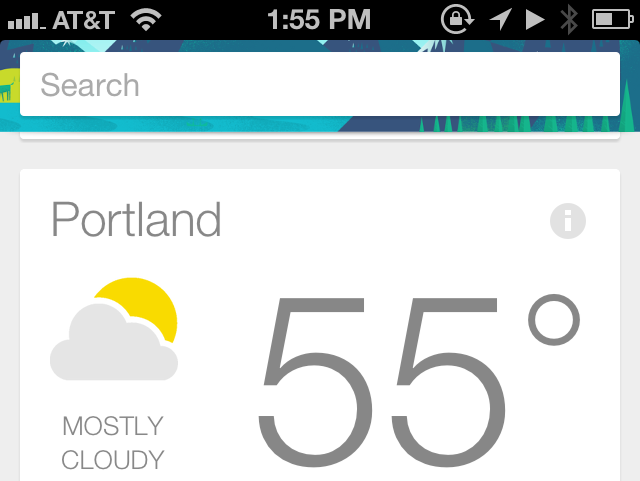
Google Now for iOS
I've got GAFYD (Google Apps for your Domain) running mail for hanselman.com and managing Google logins for the family. (There's 14 of us.)
Google Now (that's the fancy cards and predictive assistant) for iOS was just released (you can download Google Now here) and integrated into the Google Search app for iPhone and iPad.
If you install it and log in with your Google Apps account, you'll get an error that "your administrator hasn't enabled Google Now for your domain."
You'll need to (or your admin will need to) turn it on for your Google Apps Domain. It just takes a moment.
Note that you're changing this setting under Android but it affects iOS as well, which is why it's so unintuitive.
Google Apps for Business, Education, and Government: Google Now needs to be turned on by an administrator before it can be used.
If you are an administrator, you can enable Google Now for users in your organization by following these steps:
  1. Sign in to your Google Apps control panel.
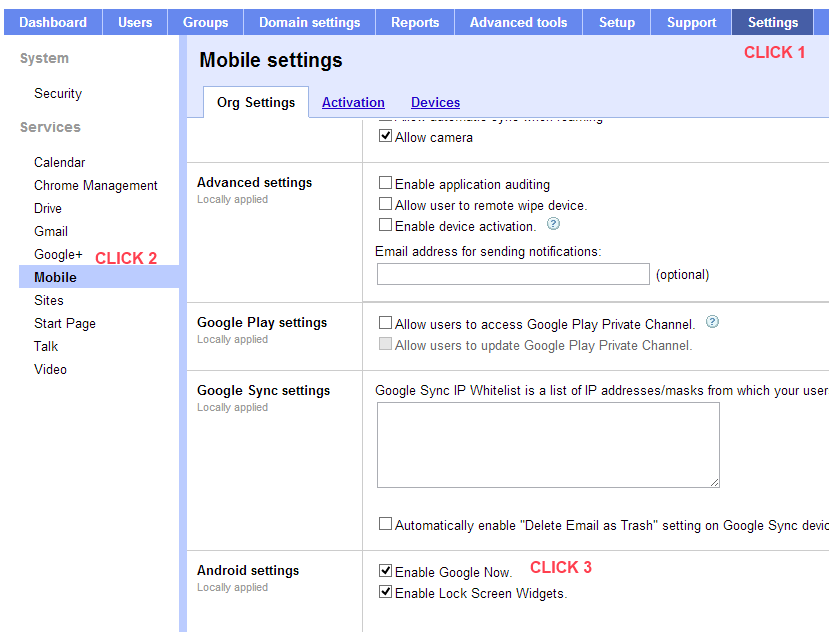
  2. Go to Settings > Mobile > Org Settings > Android settings.
  3. Click the checkbox next to Enable Google Now to turn on Google Now.
  4. Click Save.
Here's a screenshot describing the flow, as it's not obvious.
Click Settings, Mobile, Enable Google Now
It took about 10 minutes for the setting to propagate. You may also need to force-quit the Google app for it to pick up the new setting. Your mileage may vary, but this IS how you enable Google Now, regardless of device.
I hope this saves you time and frustration. Pass it on.
UPDATE: If you've updated to the new console, the location in the new console is:https://admin.google.com/AdminHome#ServiceSettings/notab=1&service=mobile&subtab=org