Wednesday, March 12, 2025

Multi-Factor Authentication for Red Hat Enterprise Linux (RHEL) 9

Microsoft does not provide a native version of the Microsoft Authenticator application for Red Hat Enterprise Linux (RHEL) 9 or any other Linux distribution. However, you can implement multi-factor authentication (MFA) on your RHEL 9 system using alternative methods that are compatible with standard authenticator apps, including Microsoft Authenticator.

Option 1: Using the Google Authenticator PAM Module

The Google Authenticator Pluggable Authentication Module (PAM) allows you to set up time-based one-time password (TOTP) authentication on your Linux system. These TOTP codes can be generated by various authenticator apps, including Microsoft Authenticator. Here's how to set it up:

  1. Install the Google Authenticator PAM Module:

    First, ensure that the Extra Packages for Enterprise Linux (EPEL) repository is enabled:

    bash
    sudo dnf install epel-release

    Then, install the google-authenticator package:

    bash
    sudo dnf install google-authenticator
  2. Configure the Google Authenticator for Your User Account:

    Run the following command to set up Google Authenticator for your user account:

    bash
    google-authenticator

    You'll be prompted with a series of questions. It's generally safe to answer 'yes' (y) to each prompt. This process will generate a QR code and a secret key.

  3. Set Up the Authenticator App:

    Open the Microsoft Authenticator app on your smartphone, select the option to add a new account, and choose the "Other" account type. Scan the QR code displayed during the google-authenticator setup or manually enter the secret key.

  4. Configure SSH to Require MFA:

    To enforce MFA for SSH logins, you'll need to modify the PAM and SSH configurations:

    • Edit the PAM Configuration for SSH:

      Open the SSH PAM configuration file:

      bash
      sudo nano /etc/pam.d/sshd

      Add the following line at the end of the file:

      swift
      auth required pam_google_authenticator.so nullok

      The nullok option allows users who haven't set up MFA to log in without it. Remove this option to enforce MFA for all users.

    • Modify the SSH Daemon Configuration:

      Edit the SSH daemon configuration file:

      bash
      sudo nano /etc/ssh/sshd_config

      Ensure the following settings are configured:

      nginx
      ChallengeResponseAuthentication yes AuthenticationMethods publickey,keyboard-interactive

      These settings enable challenge-response authentication and require both public key and MFA for login.

    • Restart the SSH Service:

      Apply the changes by restarting the SSH service:

      bash
      sudo systemctl restart sshd

For a detailed guide on setting up MFA using the Google Authenticator PAM module, refer to Red Hat's official documentation.

Option 2: Using the Authenticator Application via Snap

An alternative is to install the "Authenticator" application, which is available as a Snap package and can manage TOTP tokens. Here's how to install it:

  1. Enable Snap Support on RHEL 9:

    Ensure that the EPEL repository is enabled:

    bash
    sudo dnf install epel-release

    Install Snapd:

    bash
    sudo dnf install snapd

    Enable and start the Snapd service:

    bash
    sudo systemctl enable --now snapd.socket

    Create a symbolic link to enable classic Snap support:

    bash
    sudo ln -s /var/lib/snapd/snap /snap

    Restart your system or log out and back in to ensure the Snap paths are updated.

  2. Install the Authenticator Application:

    Install the Authenticator app using Snap:

    bash
    sudo snap install authenticator --edge

This application can generate TOTP codes compatible with services that support standard authenticator apps.

Note: The availability and compatibility of these methods may vary depending on your organization's security policies and the specific services you're accessing. Always ensure that any changes to authentication mechanisms comply with your organization's security guidelines.

Monday, February 24, 2025

How To Automount NFS Share in Linux Using Autofs

Network File System (NFS) is a robust way to share directories across systems, enabling seamless access to files. However, manually mounting NFS shares can be tedious, especially when managing multiple systems. This is where autofs, a dynamic automounting tool, shines. Autofs automatically mounts NFS shares when accessed and unmounts them when idle, saving system resources.

Prerequisites

  • A working NFS server with shared directories.
  • A Linux client machine (tested on Debian 12, RHEL 9).
  • Sudo or root access on the client machine.

Autofs service reads two files Master map file ( /etc/auto.master ) and a map file like /etc/auto.misc or /etc/auto.xxxx.


In ‘/etc/auto.master’ file we have three different fields :

/<Mount-Point>     <Map-file>     <Timeout-Value>

In map file (/etc/auto.misc or /etc/auto.xxxx) also we have three different fields:

<Mount-Point>    <Mount-Options>        <Location_of_File System>

In this tutorial, we will demonstrate how to mount an NFS share using autofs. The NFS share /var/nfs_share is exported from an Ubuntu 24.04 NFS server with the IP address 192.168.1.11. We will mount this NFS share on both RHEL 9 and Debian 12 or Ubuntu 24.04 Linux systems using autofs.

 Mount nfs share using Autofs in RHEL 9

1) Install autofs package

Install the autofs package using below yum command if it is not installed.

$ sudo rpm -q autofs
package autofs is not installed
$ sudo dnf install autofs

2) Edit the Master map file (/etc/auto.master )

Add the following line .

$ sudo vi /etc/auto.master
/dbstuff  /etc/auto.nfsdb  --timeout=180

Note : Mount point ‘/dbstuff’‘ must exist on your system. If not then create a directory ‘mkdir /dbstuff‘. NFS Share will automatically umount after 180 seconds or 3 minutes if don’t perform any action on the share.


3) Create a map file ‘/etc/auto.nfsdb’

Create a map file and add the following line.

$ sudo vi /etc/auto.nfsdb
db_backup -fstype=nfs,rw,soft,intr 192.168.1.11:/var/nfs_share

Save and exit the file.

Where :

  • db_backup is a mount point.
  • -fstype=nfs is the file system type & ‘rw,soft,intr’ are mount options.
  • ‘192.168.1.11:/var/nfs_share’ is nfs share location.

4) Start the auotfs service

$ sudo systemctl restart autofs.service
$ sudo systemctl enable autofs.service

5) Try to access the mount point

Mount point of nfs share will be ‘/dbstuff/db_backup‘. When we try access the mount point then autofs service will mount nfs share automatically as shown below:

Automount NFS share in Linux Using Autofs


Mount NFS share using autofs in Debian 12 / Ubuntu 24.04

1) Install the autofs package using apt command

$ sudo apt update && sudo apt install autofs -y

2) Edit the Master Map file ‘/etc/auto.master’

Add the following line in the master map file.

$ sudo vi /etc/auto.master
/dbstuff   /etc/auto.nfsdb   --timeout=180

Save & exit the file.

Create the mount point.

$ sudo mkdir /dbstuff

3) Create a map file ‘/etc/auto.nfsdb’

Add the following line in the map file.

$ sudo vi /etc/auto.nfsdb
db_backup   -fstype=nfs4,rw,soft,intr   192.168.1.11:/var/nfs_share

4) Start the autofs service

$ sudo systemctl restart autofs && sudo systemctl enable autofs

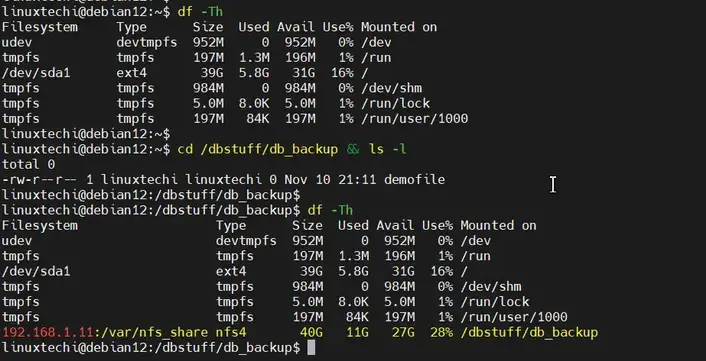
5) Try to access the mount point

Mount NFS Share On Debian12 Using Autofs


Perfect, above confirms that NFS share has been mount automatically via autofs.


That’s all from tutorial, I hope you have found it useful and informative, feel free to post your queries and feedback in below comments section.