Monday, January 12, 2009

Microsoft Office Compatibility Pack

Stuck with .docx, .xlsx, and .pptx files? These are also called OpenXML or Microsoft Office 2007 format. Here's a way to convert them in to .doc, .xls, and .ppt (respectively) in Windows.

Don't let the name "Microsoft Office Compatibility Pack for Word, Excel, and PowerPoint 2007 file format" fool you. You do not need Microsoft Office, so it works great with OpenOffice.org, Google Docs, Abiword, WordPerfect, and Microsoft Office 2003.

Installation

Just download and install Microsoft Office Compatibility Pack for Word, Excel, and PowerPoint 2007 file format. The site does not require the annoying Windows Genuine Advantage validation required for some other Microsoft downloads.

GUI conversion

Simply open the .docx, .xlsx, or .pptx document as you would any other. For example, if the document is on your desktop, just double click on it. Then, you'll see this simple dialog:
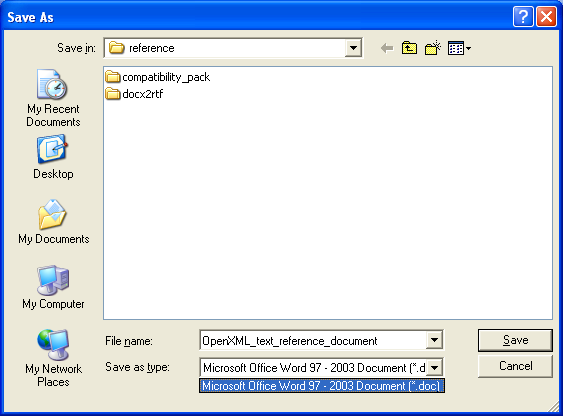
Microsoft Office Compatibility Pack dialog box

Command line conversion

While most people will use the GUI, others may want automated or batch conversions. If so, use the Windows command line with this format:

"C:\Program Files\Microsoft Office\Office12\wordconv.exe" -oice -nme

Quality of conversion

Microsoft being the OpenXML experts, the conversion was excellent and rendered well in OpenOffice.org 2.3.1. The following converted properly: the text, bold, italics, underline, typefaces changes, font sizes, character colors, paragraph indentation, paragraph alignment, highlighting, hyperlinks, bookmarks, footnotes, track changes, comments, lists, tables, picture, columns, and manual page break.

The same two problems were visible in OpenOffice.org 2.3.1 and Word 2003: the header was not aligned properly, and the embedded Excel object displays correctly but cannot be edited. OpenOffice.org complains, "Error activating object: General OLE error." Word 2003 complains, "The server application, source, or item cannot be found." I assume they are both looking for an Excel 2007 installation.

Here is the original reference document shown in Word 2007:
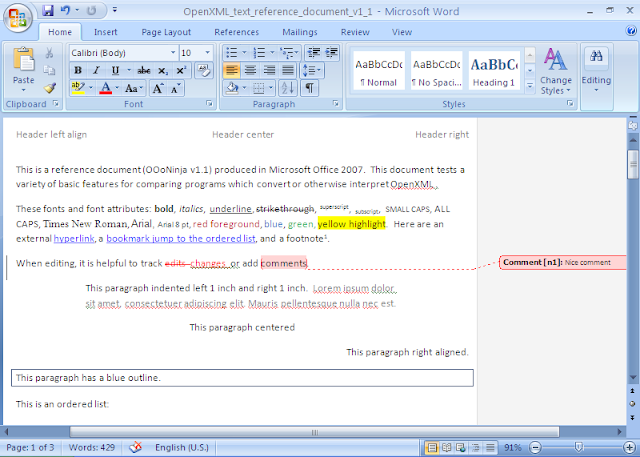
OpenXML reference document in Microsoft Office Word 2007

Here is the converted .doc document viewed in OpenOffice.org 2.3.1 with the Calibri font installed:
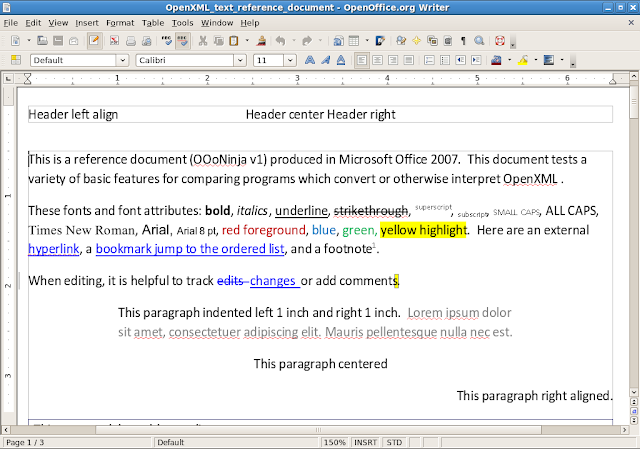
In OpenOffice.org 2.3.1 the results of the OpenXML conversion

Thursday, January 1, 2009

Rootkit Removal Guide

Rootkits are a special kind of malware that are specifically designed to hide the activities of other viruses and worms, and compromise the operating system so that it may not be repaired. If your machine is infected with a rootkit, you will very likely not be able to regain complete control of the system. Reinstallation is highly recommended.

However, there are exceptional cases when you absolutely need to attempt to repair the system. Although no tool can guarantee results for rootkit identification and removal, there is at least one program which has show limited success from time to time in this area. It's called UnHackMe.

Before You Continue:

If your computer is unable to access the internet, then you must perform the downloads on a functional computer (such as a friend's, a neighbor's, or a functional campus machine), save the respective downloaded files onto a CD-RW or a USB Flash Drive and transfer them to your computer.

Rootkit Removal with UnHackMe
  1. Installation

    Download UnHackMe and save it to the desktop.

    Open the compressed folder on your desktop named unhackme.zip and double click unhackme250.exe to begin the installation. When asked if you wish to continue, click Yes.

    Select all the default installation options by clicking Next for every step in the installation. When prompted, choose Yes to create a directory.

  2. Step 2: Check for infections

    Select the Check tab at the top of the window and then click on the Check Me Now! button. UnHackMe will begin scanning your operating system for rootkits.

  3. Step 3: Remove the infected files

    Click on the key that you want to remove

    After selecting the key, click on the Delete Key button. A window will appear asking you to verify the deletion.

    Click "Yes" to delete the infected key. Do this for all the infected keys in the list. When you're finished deleting all the keys in the list, you may close down UnHackMe.

Remember that in computer security there's no such thing as a silver bullet, and that you can't be certain which files were compromised by the viruses, worms and trojans on your machine. If you've been infected, you could still have "backdoors" riddled throughout your computer's operating system, and you should think very hard about reinstalling your operating system, and starting over from scratch. Safe computing is a habit, not a toolkit.